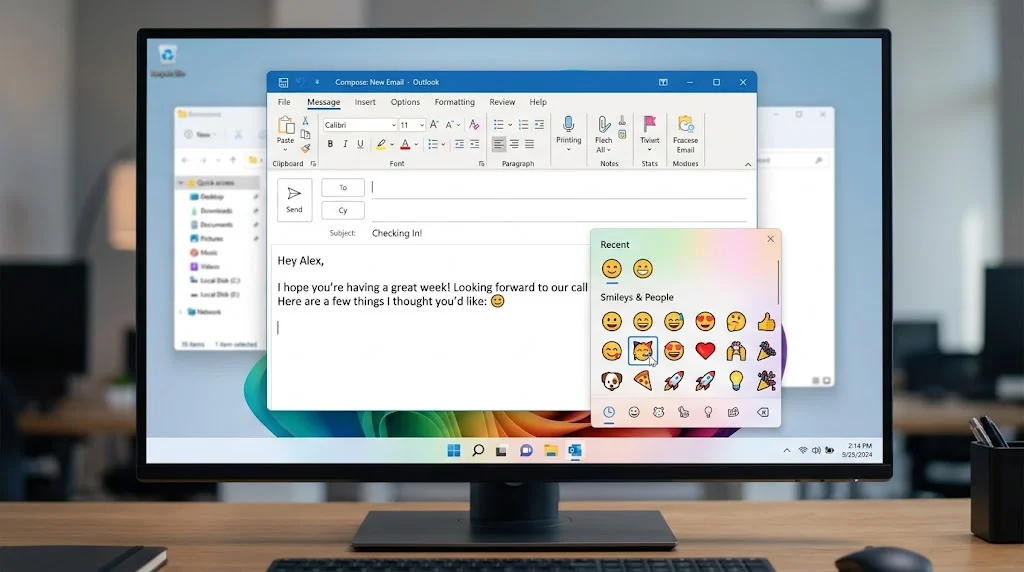
On Windows: Open your Outlook email, click where you want the emoji, then press Windows + . (period). Pick an emoji from the panel to insert it. On Outlook.com or Outlook on the web: Open a message, select the Emoji button near the message box, and choose the emoji you want.
Want to add an emoji to an Outlook email? On Windows, the quickest method is to place your cursor in the email and press Windows key + . (period) to open the emoji picker. Choose an emoji, and Outlook inserts it where your cursor is positioned. Microsoft supports this method in Outlook for Microsoft 365 and several recent Outlook versions on Windows.
If you’re using Outlook on the web or Outlook.com, you can also select the Emoji or Insert emojis and GIFs button in the message window and choose an emoji directly. The exact button can look different depending on the Outlook version you’re using.
How to Insert Emoji in Outlook Email on Windows
The Windows emoji picker is usually the fastest way to add an emoji to an Outlook message.
Step 1: Open a new Outlook email
Open Outlook and create a new message, or reply to an existing email. Microsoft provides this workflow for both new messages and replies.
Step 2: Place your cursor where you want the emoji
Click inside the email body at the exact location where you want the emoji to appear.
For example:
Thanks for your help! 😊
You can place the emoji at the end of a sentence, between words, or on its own line.
Step 3: Open the Windows emoji picker
Press:
Windows key + . (period)
The Windows emoji panel should appear. Microsoft identifies this shortcut as the way to open the emoji picker while entering text in Windows 10 and Windows 11.
Step 4: Choose your emoji
Select an emoji from the panel. It will be inserted directly into your Outlook email.
You can browse the available categories or search for an emoji by typing a keyword. For example, searching for a word such as “present” filters the available emojis.
Step 5: Continue writing your email
After inserting the emoji, close the picker or simply continue typing in Outlook.
You can insert multiple emojis in the same message if needed.
How to Insert Emoji in Outlook on the Web
If you use Outlook on the web or Outlook.com, you don’t have to rely only on the Windows keyboard shortcut.
Start a new email or reply to a message and look near the bottom of the message window for the Emoji or Insert emojis and GIFs button.
Select it, browse the available emojis, and click the one you want. Microsoft documents this built-in option for Outlook on the web and Outlook.com.
Depending on the current Outlook interface, the button or its location may look slightly different.
How to Add Emoji in New Outlook for Windows
New Outlook for Windows can use the Windows emoji picker.
- Open a new message or reply.
- Click in the message body.
- Press Windows + . (period).
- Search or browse for an emoji.
- Select the emoji.
- Continue writing your email.
Microsoft’s current Outlook support documentation specifically recommends Windows + . for inserting emojis and symbols in new Outlook for Windows.
How to Add Emoji in Classic Outlook
If you’re using classic Outlook for Windows, the same Windows shortcut is a convenient option:
Windows + . (period)
Microsoft also documents another option for supported classic Outlook versions: open the Insert tab and select Symbol, then choose a symbol from the available list or select More Symbols.
For actual emoji, however, the Windows emoji picker is generally the simpler method.
How to Insert Emoji on a Mac in Outlook
On a Mac, the emoji process is different from Windows.
While composing your Outlook email, use the Mac’s Emoji & Symbols option. Microsoft documents the Outlook Mac path as:
Edit → Emoji & Symbols
Choose the emoji or symbol you want, and it will be inserted into the message.
The exact appearance of the menu can vary between macOS versions and Outlook releases.
The Fastest Outlook Emoji Shortcut
For Windows users, remember this shortcut:
Windows + . (period)
This opens the Windows emoji panel while you’re typing. You can then choose from emojis, GIFs, kaomoji, and symbols available through the panel.
If you’re inserting emojis regularly, this shortcut can be much faster than opening a menu every time.
How to Search for a Specific Emoji in Outlook
You don’t need to scroll through hundreds of emojis to find one.
After opening the Windows emoji picker with Windows + ., start typing a keyword associated with the emoji you want. Windows can filter the available emoji based on your search.
For example, you can search for terms related to:
- smile
- heart
- party
- thumbs up
- laughing
- gift
- check
- fire
Choose the emoji that best matches your intended meaning.
Can You Copy and Paste Emojis Into Outlook?
Yes. You can copy an emoji from another message, website, document, or emoji reference page and paste it directly into an Outlook email.
For example:
😊 👍 ❤️ 🎉 ✅ 🚀
Place your cursor in the email and use Ctrl + V to paste the copied emoji.
However, using the Windows emoji picker is often easier when you want to search for a particular emoji instead of finding it somewhere else first.
What If the Emoji Picker Doesn’t Open?
If Windows + . does nothing, first make sure your cursor is inside an editable text field such as the email body.
Then try the following:
1. Try the period key shortcut again.
Press the Windows key and period key together while the email body is active.
2. Check you’re using Windows.
The Windows emoji shortcut applies to Windows 10 and Windows 11.
3. Try Outlook’s built-in emoji option.
Outlook on the web and Outlook.com provide an emoji button in the message window.
4. Try copying and pasting an emoji.
This is a simple alternative when the picker isn’t available.
5. Check which Outlook version you’re using.
Microsoft provides different instructions for new Outlook, classic Outlook, Outlook on the web, Outlook.com, and Mac.
Why Does My Emoji Look Different After Sending?
Emoji appearance can vary between operating systems, apps, and email programs.
The underlying emoji character can be the same while its visual design changes depending on the recipient’s device or software. Microsoft specifically warns that not all email programs display emoticons in exactly the same way.
For example, an emoji that looks one way in Outlook on Windows may have a slightly different design when viewed on another device.
This usually doesn’t mean that you inserted the wrong emoji.
How to Use Emojis Professionally in Outlook
Emojis can work well in friendly workplace emails, newsletters, announcements, and informal communication, but the context matters.
For example:
Thanks for the quick update! 👍
This can feel friendly and appreciative.
For a formal business message, you may prefer:
Thank you for the quick update.
The best choice depends on your relationship with the recipient, the purpose of the email, and your organization’s communication style.
Avoid adding several unrelated emojis simply to make a message look more colorful. One well-chosen emoji can often communicate a reaction without distracting from the message.
Useful Emojis for Outlook Emails
Here are a few common choices you can quickly copy:
| Emoji | Common Meaning | Useful Email Context |
|---|---|---|
| 😊 | Friendly happiness | Thank-you or friendly messages |
| 👍 | Approval or agreement | Confirmations and quick replies |
| ❤️ | Appreciation or affection | Personal or warm messages |
| 🎉 | Celebration | Good news and announcements |
| 🙏 | Thanks or appreciation | Gratitude and requests |
| ✅ | Completed or confirmed | Tasks and status updates |
| 🚀 | Excitement or progress | Projects, launches, and milestones |
| 💡 | Idea or suggestion | Brainstorming and recommendations |
The meaning can change with context, so choose an emoji that supports the message rather than replacing important information.
Can You Insert Emojis Into the Outlook Subject Line?
You can often insert an emoji into a subject line by placing your cursor in the subject field and using the Windows emoji picker.
Press:
Windows + . (period)
Then select the emoji you want.
Before using one in a professional subject line, consider it helps the recipient understand the email. An emoji can add emphasis, but a clear subject should still communicate the purpose of the message.
Can You Insert Symbols Instead of Emojis?
Yes. Outlook supports symbols as well as emojis.
In new Outlook for Windows, Microsoft documents Windows + . (period) followed by the Symbols option in the Emoji and more window. In classic Outlook, you can use Insert → Symbol.
This is useful when you need characters such as:
© ™ ® § → ✓ ★
rather than a colorful emoji.
Emoji vs. Emoticon in Outlook
The terms are sometimes used interchangeably, but they are not exactly the same.
An emoji is a Unicode character or sequence that can represent an expression, object, symbol, or concept, such as 😊 or ❤️.
An emoticon traditionally uses keyboard characters to create an expression, such as:
🙂
Microsoft notes that Outlook can support both approaches, depending on the version and feature being used.
FAQs
How do I insert emoji in Outlook email on Windows?
Click inside the email body and press Windows + . (period) to open the emoji picker. Select an emoji and it will be inserted at your cursor.
What is the shortcut for emoji in Outlook?
On Windows, the main shortcut is Windows + . (period). It opens the Windows emoji panel, where you can browse or search for an emoji.
How do I add emoji in Outlook on the web?
Open a message, select the Emoji or Insert emojis and GIFs button near the message box, and choose the emoji you want.
Can I copy and paste emojis into Outlook?
Yes. Copy an emoji from another source, place your cursor in the Outlook message, and paste it with Ctrl + V on Windows.
Why can’t I see the emoji button in Outlook?
The available controls depend on your Outlook version. If the button is missing, try Windows + . (period) on Windows or check you’re using Outlook on the web, new Outlook, classic Outlook, or Mac.
Can I insert emojis on a Mac in Outlook?
Yes. Microsoft documents Edit → Emoji & Symbols for Outlook on Mac. Choose the emoji or symbol you want from the macOS character picker.
Conclusion
The easiest way to insert emoji in Outlook email on Windows is to click inside your message and press Windows + . (period). Search or browse the emoji picker, select your emoji, and continue writing.
If you use Outlook on the web, the built-in Emoji button provides another simple option. And if the picker isn’t available, copying and pasting an emoji is a quick fallback.
Discover More Related Articles:
- Hamster Emoji | What This Cute Little Animal Says About Cuteness & Playful Moments In 2026
- Kissy Face Emoji | What This Sweet Expression Says About Kisses & Warm Messages In 2026
- Blue Circle Emoji | What This Simple Blue Symbol Represents in Texts & Social Media In 2026

Sophia Martinez is a content writer at EmojisPeace.com, where she creates fun, engaging, and easy-to-read emoji guides, meanings and digital communication content. She enjoys helping readers express themselves better with the perfect emojis for every mood and moment.