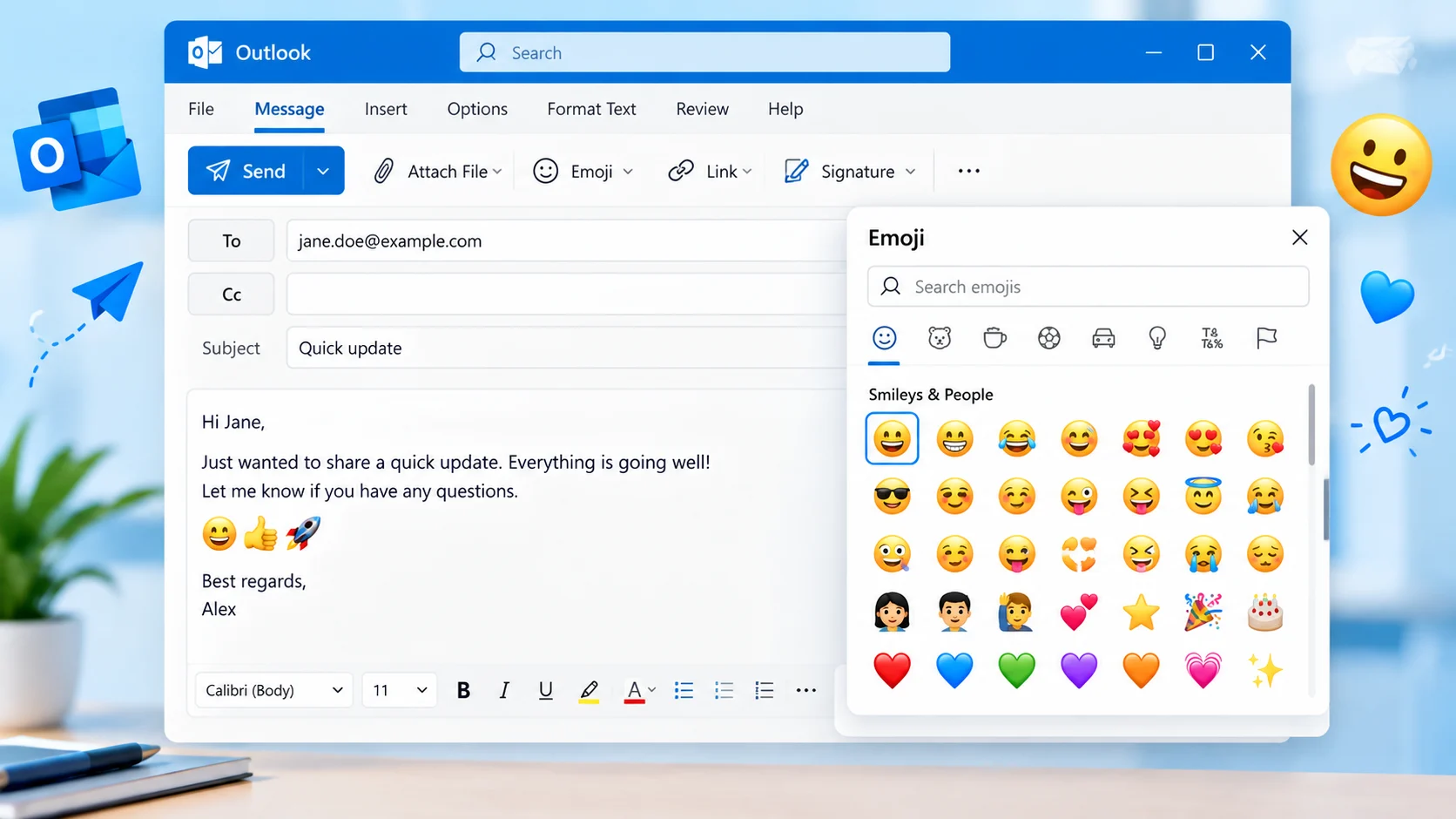
Windows: Click inside your email and press Windows + . to open the emoji picker, then select an emoji. Mac: Press Control + Command + Spacebar. In Outlook on the web, use the emoji button near the message box when available.
Adding an emoji to an Outlook email is simple. On Windows, place your cursor in the email and press Windows key + . (period) to open the emoji picker, then choose an emoji. In Outlook on the web, you can also select the Insert emojis and GIFs button in the message window. On Mac, press Control + Command + Spacebar to open the emoji viewer and select the emoji you want.
The exact option can look different depending on which version of Outlook you use. You can also copy an emoji from another source and paste it directly into an Outlook message.
How to Add Emoji to Outlook Email on Windows
If you use Outlook for Microsoft 365, Outlook 2024, Outlook 2021, or New Outlook for Windows, the Windows emoji picker is one of the quickest methods.
- Open Outlook and create a new email or reply.
- Click where you want the emoji to appear.
- Press Windows key + . (period).
- The Emoji and more panel will open.
- Choose the emoji you want.
- Continue writing your email.
The emoji is inserted at the location of your cursor. Microsoft documents the Windows + period shortcut for inserting symbols and emoji-related characters in supported Outlook versions.
Windows keyboard shortcut
Windows + .
This shortcut is especially useful when you do not see an emoji button in the Outlook ribbon or message window.
You can also search or browse the available emoji categories in the Windows picker rather than manually looking through your entire list.
How to Add Emoji in Outlook on the Web
If you use Outlook in a browser, such as Outlook.com or Microsoft 365 Outlook on the web, you may have a built-in emoji option in the message composer.
- Open Outlook in your browser.
- Select New mail or reply to an existing message.
- Click inside the message.
- Look near the bottom of the message box for the Insert emojis and GIFs icon.
- Select the emoji you want.
- The emoji will be added to your message.
Microsoft’s current Outlook web guidance says that the emoji button can be used to select an emoji directly from the message window.
In some Outlook.com interfaces, the option may instead appear under the Insert area as Emoji. Interface labels can change as Microsoft updates Outlook.
How to Add Emoji to Outlook Email on Mac
On a Mac, macOS provides a built-in emoji viewer that can be used while composing an Outlook email.
- Open Outlook for Mac.
- Start a new email or reply.
- Place the cursor where you want the emoji.
- Press Control + Command + Spacebar.
- Browse or search for an emoji.
- Select it to insert it into your email.
Microsoft lists Control + Command + Spacebar as the Outlook for Mac shortcut for inserting emoji.
Older or different Outlook for Mac interfaces may also provide an Emoji & Symbols option from the Edit menu.
How to Copy and Paste an Emoji Into Outlook
You do not always need the Outlook emoji picker.
If you already have the emoji you want, simply copy it and paste it into your email.
For example:
Thank you for your help! 😊
Great job on the presentation! 🎉
I’ll see you tomorrow. 👍
This method is useful when you already know the exact emoji you want to use.
Keep in mind that the emoji’s appearance can vary between operating systems, apps, and email programs. The underlying Unicode character can remain the same while the visual design changes. Unicode’s emoji charts show different vendor representations, including Apple, Google, Microsoft/Windows, and Samsung.
Which Emojis Work Well in Outlook Emails?
The best emoji depends on the purpose and tone of the email.
A few common choices include:
- 😊 — friendly appreciation or warmth
- 👍 — agreement or acknowledgment
- 🙂 — simple friendliness
- 🎉 — celebration or congratulations
- 👏 — praise or recognition
- 🙏 — thanks, appreciation, or a request
- 😂 — strong amusement
- ❤️ — affection or strong appreciation
- 😉 — playful or teasing tone
- 😅 — awkwardness, nervous humor, or relief
An emoji does not have one fixed meaning in every message. The words around it, the relationship between the sender and recipient, and the overall tone of the email can change how it is understood.
Related Emojis and Their Meanings
| Emoji | Official Name | Common Meaning | Tone | Where or When It Is Used |
|---|---|---|---|---|
| 😊 | Smiling Face with Smiling Eyes | Warmth, friendliness, appreciation | Friendly, positive | Thank-you emails and casual messages |
| 🙂 | Slightly Smiling Face | Mild friendliness or a simple positive reaction | Neutral, gentle | Short replies and everyday communication |
| 👍 | Thumbs Up | Agreement, approval, acknowledgment | Direct, positive | Confirmations and quick replies |
| 🎉 | Party Popper | Celebration or congratulations | Excited, cheerful | Announcements and achievements |
| 👏 | Clapping Hands | Praise or recognition | Supportive, enthusiastic | Congratulations and positive feedback |
| 🙏 | Folded Hands | Thanks, appreciation, or a request | Respectful, grateful | Thank-you messages and polite requests |
| 😉 | Winking Face | Playfulness, teasing, or a joking tone | Playful | Informal conversations |
| 😅 | Grinning Face with Sweat | Awkwardness, nervous humor, or relief | Light, slightly awkward | Explaining a mistake or uncomfortable moment |
The biggest difference is emotional strength. 👍 can be a straightforward acknowledgment, while 😊 adds more warmth. 🎉 and 👏 make a message feel more celebratory, while 😉 can introduce ambiguity because a wink may be read as playful or teasing.
For professional emails, choose an emoji that supports the words instead of replacing an important message. If the meaning could be misunderstood without the emoji, write the meaning clearly in words.
When Should You Use an Emoji in an Outlook Email?
Emoji can work well in casual workplace communication, friendly messages, congratulations, thank-you notes, and informal updates.
For example:
Thanks for getting this over to me so quickly! 👍
Here, the thumbs-up reinforces acknowledgment.
Another example:
Congratulations on the promotion! 🎉
The party popper clearly adds a celebratory tone.
For formal business correspondence, legal messages, job applications, complaints, or sensitive topics, plain language may be clearer than an emoji.
The right choice depends more on the relationship and purpose of the email than on the emoji itself.
Why Does My Emoji Look Different in Outlook?
Emoji are Unicode characters, but their visual designs are supplied by different platforms and vendors. That means an emoji can look somewhat different on Windows, macOS, a phone, or another recipient’s email application.
Unicode’s current emoji charts include vendor samples so users can see these visual differences.
This usually does not mean that you inserted a different emoji. The character can be the same even when the artwork changes.
Microsoft also warns that not all email programs display emoji in exactly the same way.
What If the Emoji Button Is Missing in Outlook?
If you cannot find an emoji button, try the keyboard shortcut for your operating system.
Windows: Press Windows + .
Mac: Press Control + Command + Spacebar.
You can also copy and paste an emoji directly into the email.
If you are using Outlook in a browser, check the message toolbar or the area near the bottom of the compose window for the emoji option. Microsoft’s current Outlook web instructions place the emoji control near the bottom of the message composer.
The available buttons can differ between Outlook versions, so the absence of a visible emoji button does not necessarily mean that emoji cannot be inserted.
FAQs
Can I add emoji to an Outlook email?
Yes. Outlook supports emoji in email messages, and the method depends on you use Windows, Mac, or Outlook on the web.
What is the shortcut to add emoji in Outlook on Windows?
Place the cursor in your email and press Windows + . (period) to open the Windows emoji picker.
What is the Mac shortcut for emoji in Outlook?
In Outlook for Mac, press Control + Command + Spacebar to open the emoji picker.
Can I copy and paste emoji into Outlook?
Yes. You can copy a Unicode emoji and paste it directly into the body of an Outlook email.
Will the recipient see the same emoji design?
Not always. The same Unicode emoji can have different visual designs on different operating systems and email programs.
Can I use emoji in a professional Outlook email?
Yes, when the situation and workplace communication style make it appropriate. Friendly acknowledgments, congratulations, and casual team messages are generally easier to express with emoji than formal or sensitive communications.
Conclusion
Adding an emoji to an Outlook email usually takes only a few seconds. On Windows, Windows + . opens the emoji picker; on Mac, Control + Command + Spacebar opens the emoji viewer; and Outlook on the web can provide an emoji button directly in the message composer.
Choose the emoji based on the tone you want to communicate, and remember that its appearance may vary on the recipient’s device.
Discover More Related Articles:
- Yoga Emoji | Balance, Peace, Mindfulness & Calm In 2026
- Blue Emoji Thumbs Up | Support, Approval & Positive Vibes In 2026
- Black Cat Emoji | What This Mysterious Cat Really Says In 2026

Sophia Martinez is a content writer at EmojisPeace.com, where she creates fun, engaging, and easy-to-read emoji guides, meanings and digital communication content. She enjoys helping readers express themselves better with the perfect emojis for every mood and moment.
5 thoughts on “How to Add Emoji to Outlook Email | Easy Steps for Messages, Subject Lines & More In 2026”