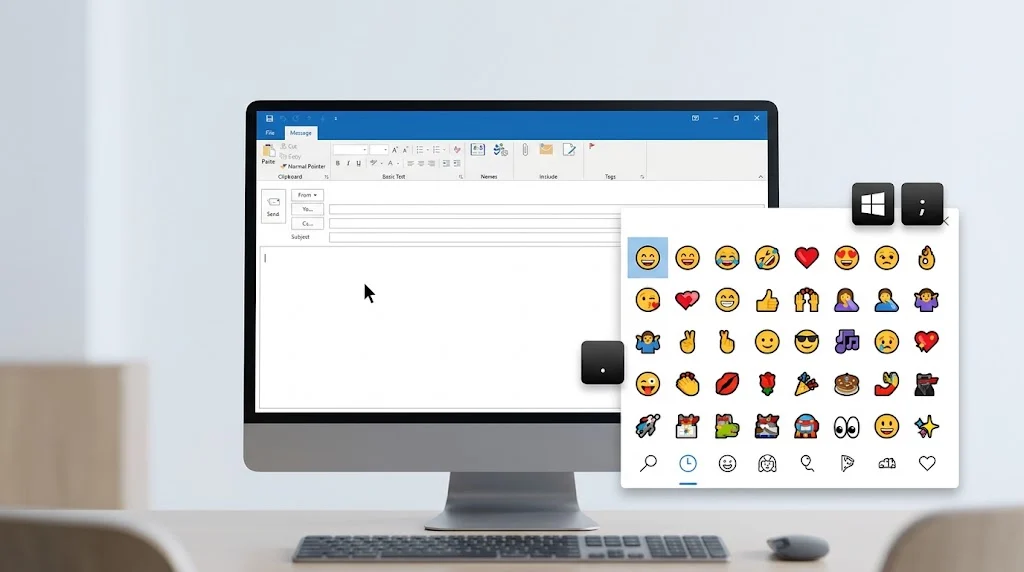
To add an emoji in Outlook on Windows, open an email, click where you want the emoji, press
Windows + ., and select an emoji. You can search the picker by keyword or browse its categories. In Outlook on the web, select the emoji/GIF icon in the message composer and choose an emoji. The exact buttons can vary slightly between Outlook versions.
Adding an emoji on Outlook is simple, you use Outlook on Windows or Outlook on the web. On Windows, the fastest method is Windows key + period (.), which opens the built-in emoji picker directly where your cursor is placed.
If you use Outlook on the web or Outlook.com, you can also open the emoji menu from the email composer and select an emoji without leaving your message.
How to Add Emoji on Outlook for Windows
The quickest way to insert emoji into an Outlook email on Windows is to use the Windows emoji picker.
- Open Outlook.
- Create a new email or reply to a message.
- Click inside the message where you want the emoji.
- Press Windows key + . (period).
- Browse the available emojis or search for one by keyword.
- Select the emoji you want.
- Continue writing your email.
Microsoft documents this keyboard shortcut for Outlook on Windows and notes that the Windows emoji picker lets you browse categories or search for an emoji by keyword.
For example, you can search for terms such as smile, heart, party, or thumbs up and then select the matching emoji.
How to Add Emoji in Outlook on the Web
If you use Outlook in a browser, you can insert an emoji directly from the message composer.
- Open Outlook on the web or Outlook.com.
- Start a new email or reply.
- Click the Insert emojis and GIFs icon near the message box.
- Browse the available emojis.
- Select the emoji you want to add.
- Continue writing and send your email.
Microsoft’s current Outlook web instructions describe the emoji/GIF button as part of the message composer.
Depending on the Outlook interface you see, the icon may appear in a slightly different location. If you cannot find it, the Windows emoji shortcut is another quick option on a Windows computer.
How to Use the Outlook Emoji Keyboard Shortcut
The keyboard shortcut is one of the easiest ways to add an emoji without searching through Outlook’s menus.
Press:
Windows + .
The emoji picker will appear near your cursor. You can then search, browse categories, and select an emoji. Microsoft also documents Windows + . as the shortcut for opening the emoji picker while composing an Outlook email.
You can also use:
Windows + ;
to open the Windows emoji panel.
Once you select an emoji, it is inserted at the current cursor position.
How to Search for an Emoji in Outlook
You do not have to scroll through every emoji to find the one you want.
Open the Windows emoji picker with Windows + ., then type a descriptive keyword into the search field. Microsoft gives the example of searching for a word such as “present” to filter the available emojis.
This can be useful when you need a specific emoji for an email, such as:
- 👍 Thumbs Up
- ❤️ Red Heart
- 😊 Smiling Face with Smiling Eyes
- 🎉 Party Popper
- 😂 Face with Tears of Joy
- 🙏 Folded Hands
- ✅ Check Mark Button
- 📌 Pushpin
Searching by the emoji’s meaning is often faster than browsing category by category.
How to Add Emojis to a Professional Outlook Email
Using emojis in a work email is mostly about context and tone.
A simple 👍 can work well in a short confirmation:
“Thanks for the update. 👍”
A ✅ can make a completed task easy to recognize:
“The report has been reviewed. ✅”
A 🎉 may fit a celebration:
“Congratulations on the successful launch! 🎉”
For formal messages, customer communication, legal correspondence, or sensitive topics, plain text may be clearer than relying on an emoji.
An emoji should add meaning rather than replace important information.
Best Emojis for Outlook Emails
There is no single “best” emoji for every email. The right choice depends on what you are trying to communicate.
| Emoji | Official Name | Common Meaning | Tone | Useful in Outlook Emails For |
|---|---|---|---|---|
| 👍 | Thumbs Up | Agreement or acknowledgment | Friendly | Confirmations and quick replies |
| 😊 | Smiling Face with Smiling Eyes | Warmth and friendliness | Positive | Friendly messages |
| ❤️ | Red Heart | Affection or strong appreciation | Warm | Personal messages and appreciation |
| 🎉 | Party Popper | Celebration | Cheerful | Congratulations and milestones |
| ✅ | Check Mark Button | Complete or approved | Clear | Tasks and confirmations |
| 🙏 | Folded Hands | Thanks, request, or appreciation | Polite | Gratitude and polite requests |
| 😂 | Face with Tears of Joy | Strong amusement | Playful | Casual conversations |
| 👏 | Clapping Hands | Praise or congratulations | Positive | Recognition and achievements |
The official emoji name can help when searching for a specific character, but the meaning of an emoji can still change with the surrounding message.
Can You Copy and Paste Emojis Into Outlook?
Yes. You can copy an emoji from another application or webpage and paste it into an Outlook email.
For example:
👍 ❤️ 😊 🎉 ✅ 🙏 👏 🚀
This can be useful if you already know which emoji you want and do not want to open the picker.
However, copying an emoji does not guarantee that every recipient will see exactly the same artwork. Different operating systems, applications, and email clients can display the same Unicode emoji with different designs. Microsoft also warns that not all email programs display emoticons in exactly the same way.
Why Does My Emoji Look Different After Sending?
Emoji characters are standardized, but their visual designs can vary between platforms.
For example, an emoji selected in Outlook on Windows may have a different visual appearance when the recipient opens the message on another operating system or email application.
The underlying emoji character can be the same even when the artwork looks different.
This is one reason to avoid using an emoji when the exact visual appearance is essential to the meaning of a professional message.
What If the Emoji Button Is Missing in Outlook?
If you cannot find an emoji button in your Outlook interface, try the Windows shortcut first:
Windows + .
Microsoft specifically documents this method for Outlook on Windows.
If you are using Outlook on the web, look near the bottom of the message composer for the Insert emojis and GIFs option.
Outlook interfaces can differ depending on you are using new Outlook, classic Outlook, Outlook.com, or Outlook on the web, so the location of a menu option may not be identical in every version.
Can You Add Emojis in Classic Outlook?
Yes. On Windows, the built-in Windows emoji picker can be used while composing an Outlook email. Microsoft lists Outlook for Microsoft 365, Outlook 2024, Outlook 2021, Outlook 2019, and Outlook 2016 among the versions covered by its emoji instructions.
If your version has a different interface, Windows + . is often the simplest method because it opens the Windows emoji picker independently of a particular Outlook ribbon layout.
Can You Use Emojis on Outlook for Mac?
Mac users have a system-level emoji picker as well. In Outlook, you can use the macOS emoji and symbols interface to insert characters into your message.
The exact menu labels can vary with the macOS and Outlook versions installed, so the keyboard-based emoji picker is generally the most convenient approach when available.
How to Add Symbols Instead of Emojis in Outlook
If you need a mathematical, copyright, trademark, currency, or other special symbol rather than an emoji, Outlook provides other options.
In supported Outlook for Windows versions, Microsoft says you can open a message, place the cursor where the symbol should go, press Windows + ., and select Symbols from the Emoji and more window. In classic Outlook, you can also use Insert > Symbol.
This is useful when you need characters such as:
© ™ ® ° ± → ✓
rather than colorful emoji.
Outlook Emoji Autocorrect
Some Outlook versions also support text-based emoticons that can be converted into emoji.
For example:
🙂
can be converted into a smiling-face emoji through Office AutoCorrect. Microsoft documents this behavior for Outlook and explains that the conversion depends on the available emoji font and AutoCorrect settings.
This is different from selecting an emoji through the Windows picker because you are starting with a text character combination rather than choosing an emoji directly.
Should You Use Emojis in Work Emails?
It depends on the relationship, subject, and workplace communication style.
For a casual internal message, a small emoji can make a short response feel warmer:
“Sounds good. 👍”
For a congratulatory email:
“Great work on the presentation! 🎉”
For a formal customer, legal, financial, or sensitive message, you may want to keep the wording clear without depending on an emoji.
The key is to make sure the emoji supports the message instead of creating uncertainty about your tone.
Outlook Emoji Examples You Can Copy
Here are some simple combinations you can copy directly into an email:
Thanks:
Thank you for your help! 🙏
Confirmation:
Sounds good. 👍
Completed task:
Everything is ready. ✅
Congratulations:
Congratulations on the great news! 🎉
Friendly greeting:
Hope you’re having a great day! 😊
Appreciation:
Really appreciate your help. ❤️
Team achievement:
Great work, everyone! 👏
These are examples rather than fixed meanings. The same emoji can feel different depending on the wording around it.
Common Outlook Emoji Problems
The emoji picker does not open
If the emoji picker does not appear, make sure the cursor is inside the email message and try Windows + . again. Microsoft recommends this shortcut for inserting emojis into Outlook on Windows.
The emoji looks different for the recipient
This can happen because emoji artwork varies between platforms and email clients. The Unicode character can remain the same even when its appearance changes.
An emoji turns into a text symbol
Some email programs may not display emoticons in exactly the same way. Microsoft notes that an emoticon displayed as a colorful graphic in one email client can appear as text symbols in another.
You cannot find a particular emoji
Try searching for it by a descriptive word in the Windows emoji picker. If you know the emoji already, copying and pasting it is another simple option.
FAQs
How do I get emoji on Outlook?
On Windows, click inside your Outlook email and press Windows + . to open the emoji picker. In Outlook on the web, use the Insert emojis and GIFs button in the message composer.
What is the shortcut for emoji in Outlook?
The main Windows shortcut is Windows key + period (.). You can also press Windows + ; to open the Windows emoji panel.
Can I copy and paste emojis into Outlook?
Yes. You can copy an emoji such as 👍 🎉 ❤️ 😊 and paste it directly into an Outlook email. The recipient may see a different visual design depending on their device or email client.
Why can’t I see the emoji button in Outlook?
The interface differs between Outlook versions. If the button is missing, try Windows + . on Windows, or use the emoji option in the web message composer.
Can I search for an emoji in Outlook?
Yes. The Windows emoji picker includes a search function, so you can enter a descriptive keyword and select the emoji from the results.
Do Outlook emojis look the same for everyone?
Not always. The same emoji character can have different artwork across operating systems and email applications, so recipients may see a slightly different design.
Conclusion
Adding an emoji on Outlook is quick. On Windows, Windows + . opens the emoji picker, while Outlook on the web provides an emoji option directly in the message composer.
For everyday emails, emojis can add a little warmth or make quick reactions easier to understand. Just choose them based on the tone of the message and remember that the same emoji may look different to the recipient.
Discover More Related Articles:
- Blushing Emoji Meme | Meaning, Uses & Funny Reactions In 2026
- Funny Emoji Faces | Meanings, Uses & How to Choose the Right One In 2026
- Spiral Emoji Meaning | What It Means in Text & How to Use It In 2026

Sophia Martinez is a content writer at EmojisPeace.com, where she creates fun, engaging, and easy-to-read emoji guides, meanings and digital communication content. She enjoys helping readers express themselves better with the perfect emojis for every mood and moment.
4 thoughts on “Emoji on Outlook | How to Add Emojis to Outlook Email In 2026”